How to recover your Apple Account password
Forgot your Apple Account password (formerly Apple ID)? The quickest way is the iPhone or Mac you already use. If you don't have one, there's the Apple Support app, the official website and, as a last resort, account recovery.
Procedure verified on against the official sources.
The easiest way to reset your Apple Account password is to use an iPhone, iPad or Mac where you're already signed in with that account: all you need is the device passcode and a minute. If you don't have one, you can use the Apple Support app on a family member's iPhone or the official website iforgot.apple.com.
Only if none of these works do you move on to account recovery, which takes days of waiting.
Apple ID is now called Apple Account: the email address or phone number you sign in with stays the same.
Before you start
- You need the passcode of your iPhone or iPad (or the password you use to unlock your Mac). It proves the device is yours.
- Choose a new password you've never used and write it down somewhere safe at home.
- Be wary of anyone who contacts you to «unlock» your account. Messages and emails asking you to confirm your password through a link are almost always scams: read how to recognize a scam email or text.
- If your account uses two-factor authentication (the protection that sends a code to your devices), keep the phone with the registered number nearby.
On iPhone or iPad
-
Open the Settings app and tap [your name] at the top.
-
Tap Sign-In & Security.
-
Tap Change Password.
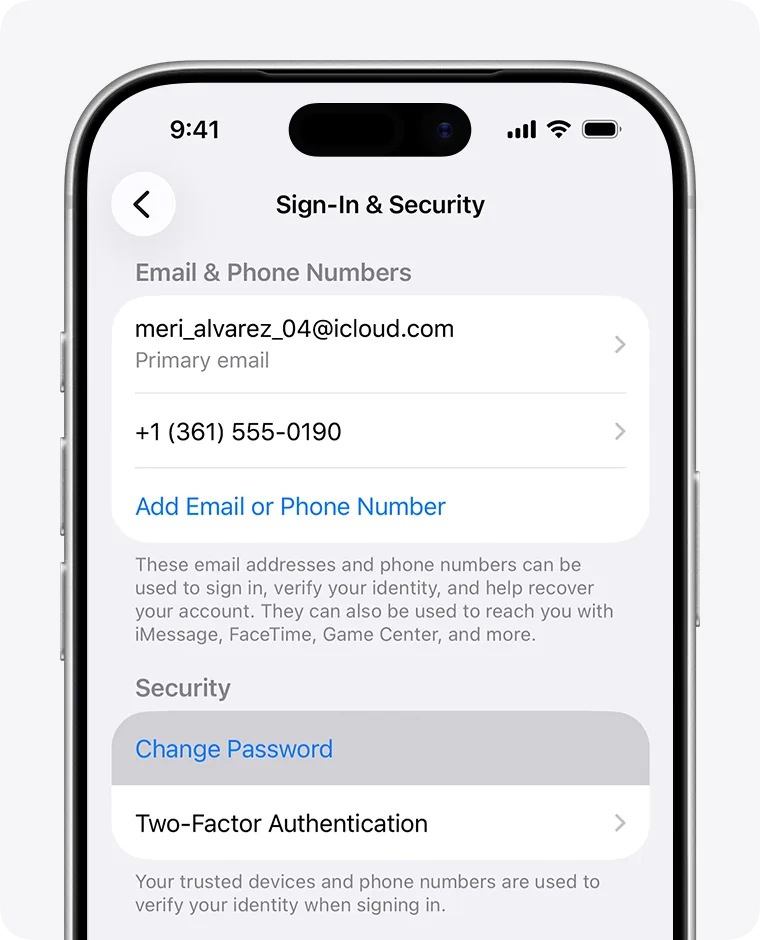
Step 3: Change Password, on iPhone. Image: Apple Support -
Enter your device passcode, then follow the onscreen instructions to choose the new password.
If Stolen Device Protection is on, you may have to wait an hour before the change takes effect. It's a defense against someone who steals the phone together with its passcode.
On a Mac
-
From the Apple menu (the apple at the top left), choose System Settings.
-
Click [your name], then Sign-In & Security.
-
Click Change Password.
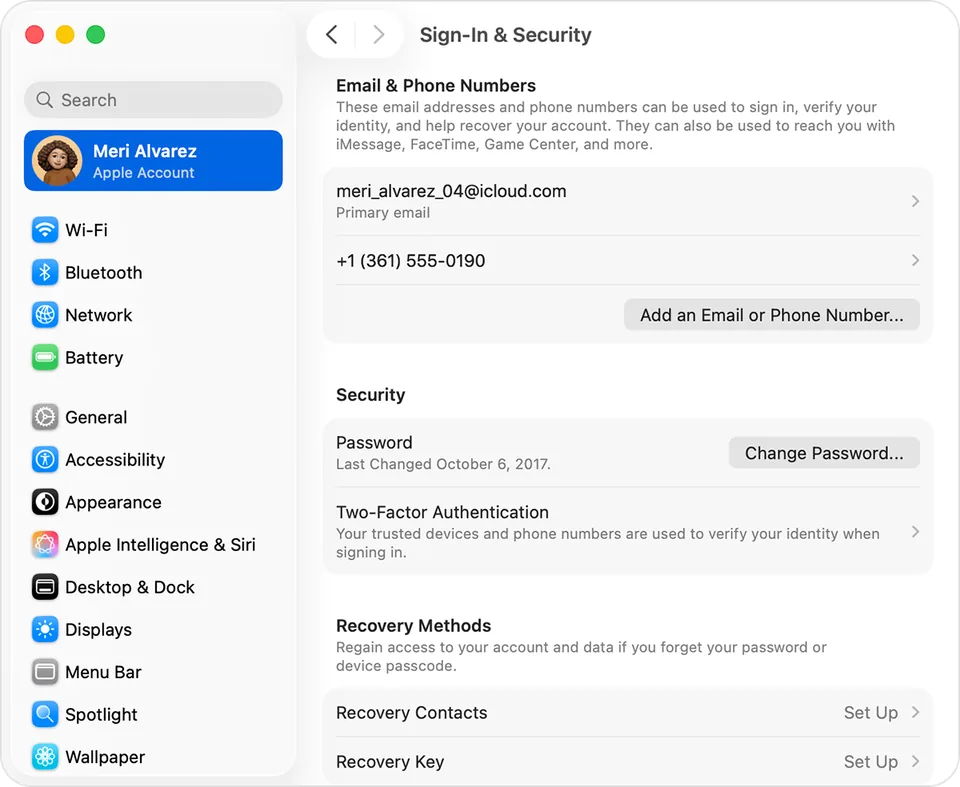
Step 3: Change Password, on Mac. Image: Apple Support -
Enter the password you use to unlock your Mac, then follow the onscreen instructions.
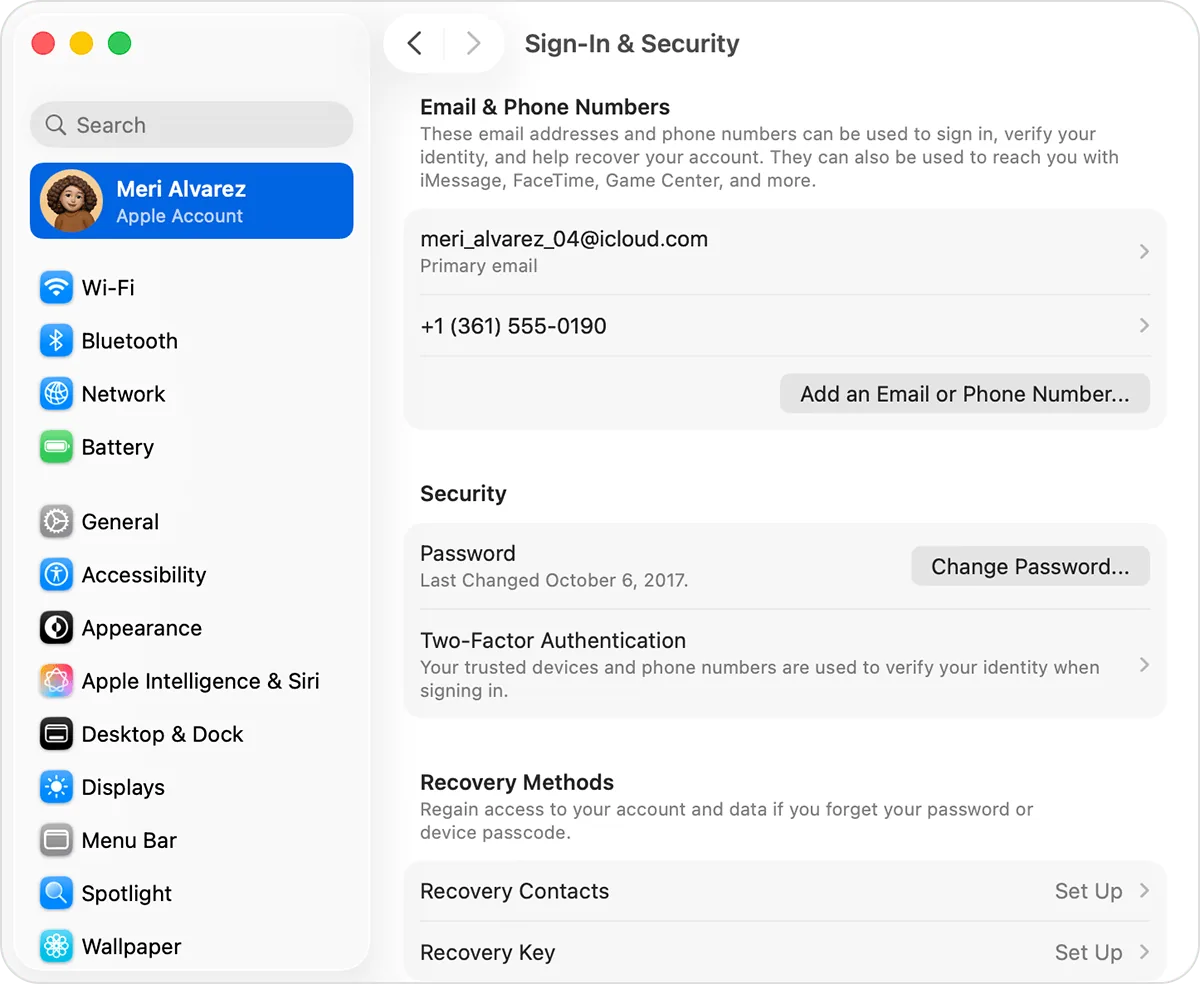
On a brand-new iPhone or Mac
If you're setting up a new device and don't remember your password, on the Apple Account sign-in screen choose «Forgot password or don't have an Apple Account?».
If instead you skipped signing in during setup:
- On iPhone or iPad: open Settings, tap Apple Account, choose Sign in manually and then Forgot password?.
- On Mac: from the Apple menu choose System Settings, click Sign in and then Forgot password.
Without a device of your own: a family member's iPhone
If you still have your phone number but no Apple device, you can borrow a friend's or family member's iPhone or iPad. Apple also lets you use one at an Apple Store.
- On the borrowed device, open the Apple Support app. If it isn't there, you'll find it in the App Store.
- Scroll down to Support Tools and tap Reset Password.
- Tap Help Someone Else.
- Enter the email address or phone number of your Apple Account.
- Tap Continue and follow the instructions.
Apple points out that the information you enter isn't stored on the device of the person who lends it to you.
From Apple's website
From a web browser:
- Go to iforgot.apple.com.
- Follow the instructions to reset your password.
When possible, the site sends you to one of your registered devices to confirm. Apple warns that the web route may take a bit longer: if you'll have your iPhone with you soon, it's better to wait and do it from there.
The last resort: account recovery
If you use two-factor authentication and none of the methods above works, Apple offers account recovery. Before starting it, really try everything else: another device of yours, the Apple Support app on a family iPhone, other email addresses or numbers you may have used for the account, and your recovery contact if you have one.
To start it:
- From your device: in Settings (iPhone and iPad) or System Settings (Mac), try to sign in; if you don't know the password, you'll be offered account recovery.
- From the web: go to iforgot.apple.com, click Reset Password and follow the steps.
What happens next:
- Within 72 hours you get an email confirming the request and the date when you can expect to regain access.
- The wait can last several days or more, and Apple Support can't shorten it.
- Turn off your other devices signed in to your Apple Account until recovery is complete: if the account is used during the wait, recovery cancels itself. If you started it from Settings or the Apple Support app, you can keep using that device.
- At the end Apple sends you a text or an automated phone call with instructions. If it doesn't arrive, once the stated period has passed go back to iforgot.apple.com.
If in the meantime you remember your password and manage to sign in, the wait is canceled and you can use your account right away.
For next time: a recovery contact
A recovery contact is a trusted person, with an iPhone, iPad or Mac, who can generate a code for you to get back in. You can have up to five.
-
Open Settings and tap [your name].
-
Tap Sign-In & Security, then Recovery Contacts.
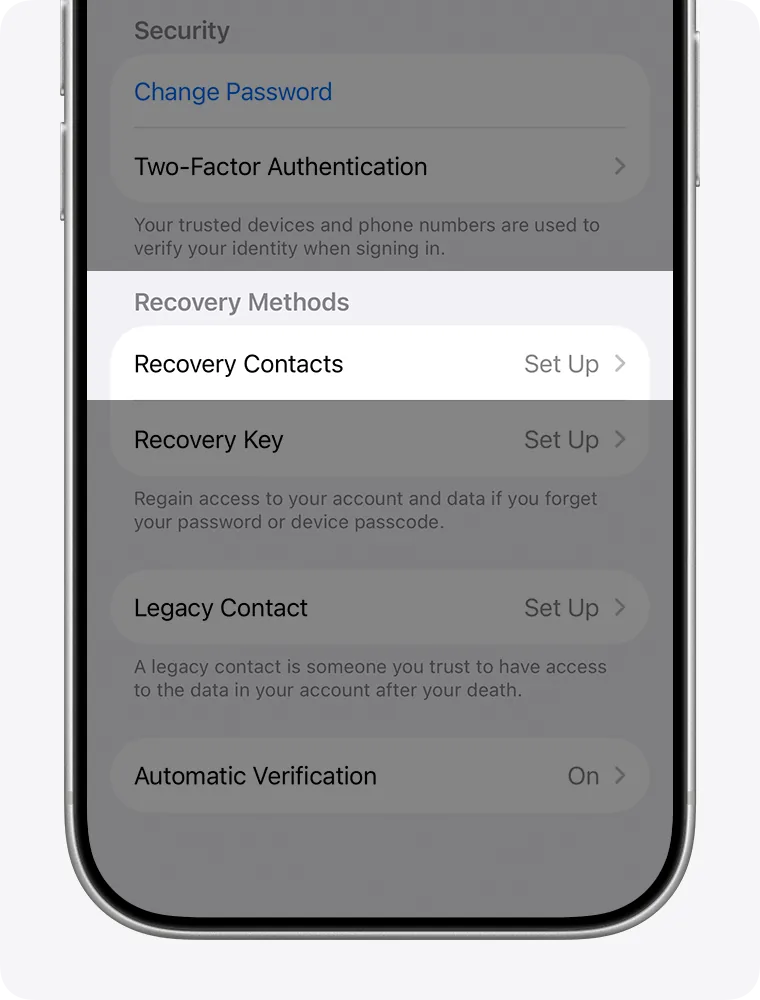
Step 2: Recovery Contacts, in Sign-In & Security. Image: Apple Support -
Tap Add Recovery Contact and follow the instructions.
The person receives the invitation in the Messages app and must accept it. You both need two-factor authentication on and iMessage turned on. To understand how these codes work, also read the guide on two-step verification.
If it still doesn't work
- The code doesn't arrive on the registered number: check that you have signal and that you're using the right SIM. If you lost the number, start from the Apple Support app or iforgot.apple.com.
- You don't know which email the account uses: try the different addresses and numbers you may have used over the years, as Apple suggests.
- You started recovery and keep using your iPad: using the old device can cancel or delay the request. Turn it off.
- Someone offers to unlock your account for a fee: don't trust them. The official routes are the ones on this page.
- Before changing phone, make a backup of your iPhone to a PC or Mac and check that you remember your password: it saves a lot of trouble.
- If you're helping a parent or grandparent and can't work out which route to try, a technician can look at the situation with you and follow the official procedure step by step.
Frequently asked questions
Are Apple ID and Apple Account the same thing?
Yes. Apple changed the name: Apple ID is now called Apple Account, and you sign in with the same email address or phone number and the same password as before.
If I call Apple Support, can they shorten the recovery wait?
No. Apple states clearly that contacting Support doesn't speed up account recovery: the waiting period is there to protect you and your data.
I changed my password but my iPhone tells me to wait an hour: is that normal?
It can be. If Stolen Device Protection is on, Apple may require a one-hour security delay before you change your password or other critical settings.