How to recover your Google Account (Gmail) password
Forgot your Gmail password or can't remember the address? Here is Google's official procedure to get back in, the tips that improve your chances of success, and what to set up so it doesn't happen again.
Procedure verified on against the official sources.
If you forgot your Gmail password, there's only one way: Google's official recovery procedure, at accounts.google.com/signin/recovery. Google asks you some questions to confirm the account is yours and then lets you choose a new password. It works best if you do it from the phone or computer you usually use, at home.
Gmail and your Google Account are the same front door: by recovering one, you also recover YouTube, Google Photos, Google Play and the rest.
Before you start
- Use your usual device. Google recommends doing the recovery from a computer, phone or tablet you often use to sign in, with the same browser you use every day.
- Do it from a familiar place, like home or work. Avoid café Wi-Fi or a friend's phone.
- Have at hand the phone with the number you linked to the account and any recovery email address (another mailbox you gave Google).
- Think back to old passwords. If you don't remember the latest one, you'll need one of the previous ones: the more recent, the better.
- Watch out for scams. Google never asks for your password or verification codes by email. If you get a message asking you to «confirm your account» by clicking a link, first read how to recognize a scam email.
If you forgot your password
- Open the recovery page: accounts.google.com/signin/recovery.
- Type your Gmail address and continue.
- Answer, as best you can, the questions Google uses to confirm the account is yours. If it asks for a password and you don't remember the latest one, type one of the previous ones; if it asks for an email address, give your recovery email or another one you linked to the account.
- When Google asks, choose a new password, strong and never used before for that account.
Some rules Google itself suggests:
- Don't skip questions. If you're not sure of an answer, give the one that seems most likely.
- Wrong answers don't lock you out: there's no limit on the number of attempts.
- Check your Spam folder if you're waiting for a message from the Google support team.
After the change, you'll be signed out of the account on almost all devices: your phone, tablet and computer will ask for the password again. That's normal, and it's a protection.
If you don't remember your Gmail address
This often happens with accounts opened years ago. Google has a dedicated procedure, at accounts.google.com/signin/usernamerecovery. You need:
- the phone number or the recovery email address linked to the account;
- your full name as you entered it on the account.
- Open the username recovery page.
- Enter the phone number or the recovery email.
- Type your first and last name.
- Follow the instructions to confirm the account is yours.
- You'll see a list of the addresses linked to those details. Choose yours and, if needed, go on to recover the password.
Once you're back in: stop it from happening again
As soon as you're in, take five minutes for your recovery info. It's what will save you next time.
- Open your Google Account (in the browser, at myaccount.google.com).
- Select Security & sign-in.
- In the How you sign in to Google section, check these items:
- Recovery phone: it must be the number you use today.
- Recovery email: an address you actually check, but different from your Gmail one.
- Recovery contacts: a trusted person, like a family member, who can help you get back in.
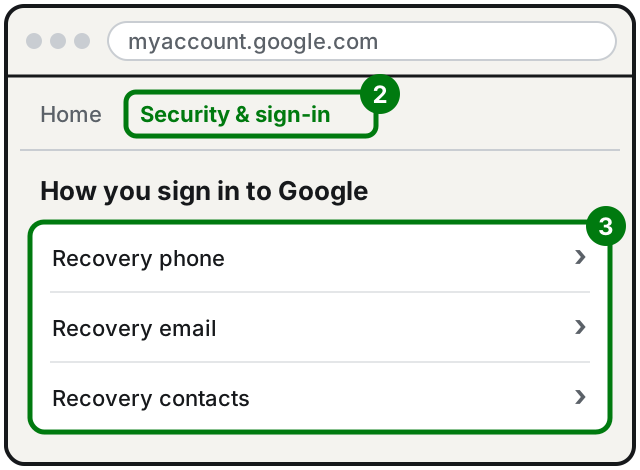
Two things to know: if you change your recovery phone or email, it can take up to 7 days for the change to take effect; a recovery contact, once they accept the invitation, can only be used after 7 days.
While you're at it, turn on 2-Step Verification: that way, even if someone found out your password, they couldn't get in without your phone.
If you want to change your password in the future, knowing the current one, the path is: Google Account > Security & sign-in > Password, then type the new one and select Change Password.
If it still doesn't work
- Google says it can't verify the account is yours. Try again after a few days, from your usual device and location, answering every question. If you had just changed your recovery info, wait for the 7 days to pass.
- The SMS code doesn't arrive. Check that you have signal and that the number is right. If you changed number a while ago, the other questions (old passwords, usual device) become even more important.
- It's a work or school account. In this case the procedure may not work: you need to ask your company's or school's administrator.
- You think someone stole your account (password changed without your knowledge, emails sent that you didn't write): Google's official page has a dedicated procedure for compromised accounts. First of all, don't reply to anyone who contacts you offering help.
- It really can't be recovered. Google suggests creating a new account as a last resort: here is how to create a Google Account. The photos and emails in the old account, however, stay there.
- If the old account holds important photos or documents, or you're helping an elderly relative, it can be worth having a trusted technician beside you: not to «force» the recovery, which nobody can do, but to try it calmly and correctly, and then set up the recovery info.
Frequently asked questions
Can I call Google to unlock my account?
No. Google says clearly that, for security reasons, you can't call for help with signing in, and that it doesn't work with any service that promises to recover accounts or passwords. Avoid anyone who offers this kind of help, often for a fee.
How many times can I retry the recovery?
As many as you want. According to Google there's no limit on attempts, and wrong answers don't lock you out of the process.
I changed my phone number and don't get the code: what do I do?
Try the procedure anyway from your usual device and location, answering every question. If it works, update your recovery phone right away: changes can take up to 7 days to take effect.
After changing my password, do I have to sign in again everywhere?
Almost always, yes. Google signs you out of all devices, except those used to verify your identity and a few other cases, like some smart home devices.