How to reset Windows 11 without losing your files
The ways to fix Windows 11 while keeping your documents, from the lightest to the most drastic: reinstalling Windows through Windows Update, going back to a restore point, Reset PC with "Keep my files".
Procedure verified on against the official sources.
Windows 11 has several ways to get itself back on track, and some of them don't touch your documents. The lightest is Reinstall now (in Settings > System > Recovery), which keeps your files, apps and settings. If that's not enough, you can go back to a restore point. The last resort is Reset PC with the Keep my files option: your documents stay, but programs need to be reinstalled.
Microsoft recommends trying them in exactly this order, from the least to the most disruptive.
Before you start
- Make a copy of your files anyway on an external drive or in the cloud. The options below are designed to keep them, but something unexpected (a power cut, a disk already in poor shape) can always happen. See how to back up a Windows PC.
- Write down the programs you use and find the license keys of the paid ones: with Reset PC they'll need to be reinstalled.
- Check whether you have the BitLocker key. If the disk is encrypted, some operations ask for it. From another device you can look for it in your Microsoft account at https://aka.ms/myrecoverykey.
- Plug the laptop into power and don't turn it off during the reset. The screen may stay black for as long as 15 minutes: that's normal.
On Windows 11: the options, from the lightest
1. Reinstall now: keeps everything
It reinstalls the same version of Windows you already have, through Windows Update. According to Microsoft it keeps your apps, files and settings. It's ideal when Windows is misbehaving or updates won't install.
-
Open Start > Settings > System > Recovery.
-
In the Fix problems using Windows Update section, choose Reinstall now.
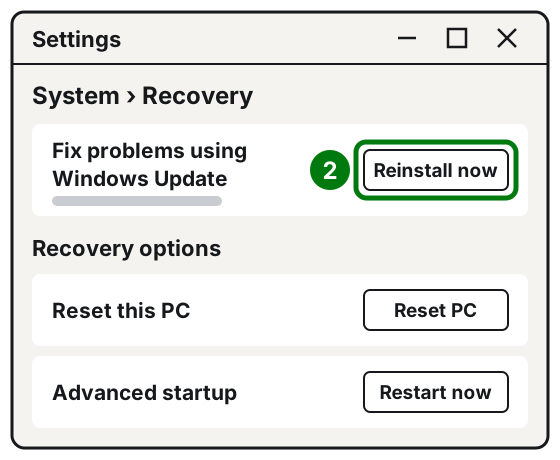
Step 2: Reinstall now. Illustration: SimpleBuild -
Decide whether to let the PC restart on its own 15 minutes after it finishes.
-
Choose OK and wait: the PC downloads and installs Windows, so keep it on and connected to the Internet.
You need Windows 11 22H2 or later, updated at least to February 2024. On PCs managed by a company or school the option may be missing.
2. Go back to a restore point: keeps your documents
A restore point is a "snapshot" of Windows settings and installed programs, taken on a certain day. Going back to it undoes later changes, for example a driver or program that caused problems, without touching your personal files.
- Press Windows + R together, type
rstrui.exeand press Enter. - In the Restore system files and settings window, choose Next.
- Choose a restore point dated before the problems began. If you don't see the right one, check Show more restore points.
- If you like, choose Scan for affected programs: it shows you which programs will be removed or put back.
- Choose Next and then Finish. The PC restarts on its own.
If there are no restore points in the list, there's nothing to go back to: move on to the next option.
3. Reset PC with "Keep my files"
This is the most drastic of the options that keep your documents. Windows is reinstalled from scratch: your documents, photos and personal files stay, but apps and settings are removed.
-
Open Start > Settings > System > Recovery.
-
Under Recovery options, next to Reset this PC, choose Reset PC.
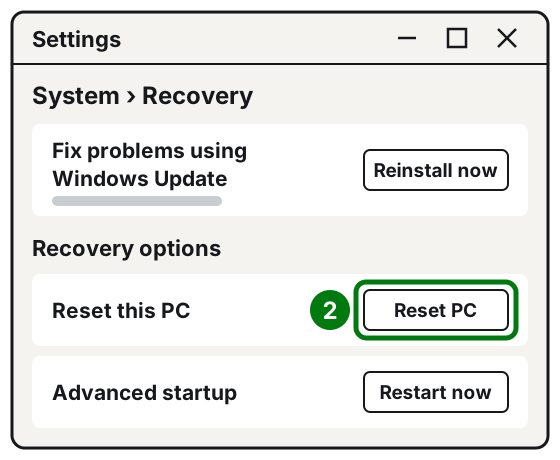
Step 2: Reset PC, under Recovery options. Illustration: SimpleBuild -
Choose Keep my files. Don't choose Remove everything: that option also erases your documents and is meant for people selling or giving away the PC.
-
Choose how to reinstall Windows:
- Cloud download: downloads a fresh, updated copy from the Internet;
- Local reinstall: uses the files already on the PC.
-
If the Restore preinstalled apps option appears, turn it on to get back the apps installed by the PC manufacturer.
-
Read the summary and follow the on-screen instructions to the end.
At the end, sign in with your account, check that your documents are there and reinstall the programs you need.
If Windows won't start anymore
If Windows fails to start several times in a row, it opens the Windows Recovery Environment on its own: a set of repair tools that run before Windows. If the disk is encrypted, the BitLocker key may be needed here.
If the Automatic Repair screen appears, choose Advanced options. Then:
- To try automatic repair first: Troubleshoot > Advanced options > Startup Repair.
- To reset while keeping your files: choose Troubleshoot and then Reset this PC, then Keep my files.
- To go back to a restore point: choose Troubleshoot > Advanced options > System Restore.


If instead Windows starts but you want to get to that screen, go to Start > Settings > System > Recovery and, next to Advanced startup, choose Restart now.
If it still doesn't work
- Did the problems start after an update? Before resetting, try removing it: the guide on Windows Update not working or showing an error explains how.
- Is the PC just slow? Often nothing needs resetting: first try how to speed up a slow PC.
- Does the reset stop with an error? Try again choosing the other mode (Cloud download instead of Local reinstall, or vice versa).
- Do you have a recovery drive or the manufacturer's discs? Microsoft also describes reinstalling from a recovery drive or from installation media, but those routes erase everything: you need a full copy of your files first.
- When to call a technician: if the PC won't start and you don't have a copy of your documents, stop before resetting. A technician can often recover the files by connecting the disk to another computer, and only then fix Windows.
Frequently asked questions
With "Keep my files", do I lose my programs?
Yes. Documents, photos and other personal files stay, but installed apps and settings are removed. You'll have to reinstall your programs, so keep the license keys of the paid ones handy.
Is "Cloud download" or "Local reinstall" better?
"Cloud download" downloads a fresh, already updated copy of Windows from the Internet, and it's useful if the PC's files are damaged. "Local reinstall" uses the files already on the computer: it's better suited to a slow connection, but it may not have the latest updates.
The PC is asking me for a BitLocker key: what is it?
It's a 48-digit code that protects the disk when it's encrypted. It's often saved in your Microsoft account, at aka.ms/myrecoverykey from another device. Microsoft Support can't recover it if it's been lost.