How to find a lost iPhone or Android phone
A lost iPhone is found with Find My, from another Apple device or from icloud.com/find; an Android phone with Google's Find Hub, from the app or a browser. How to make it ring, lock it, erase it remotely and what to turn on today, before it happens.
Procedure verified on against the official sources.
If you've lost an iPhone, look for it with Find My: from the app on another Apple device or from the icloud.com/find website, on any computer. If you've lost an Android phone, look for it with Google's Find Hub: from the app on another Android or from a browser, at android.com/find. From there you can make it ring, lock it with a message for whoever finds it and, as a last resort, erase it remotely.
Before you start
- It only works if location was already turned on on the lost phone. Apple says it plainly: if Find My wasn't on, the phone doesn't appear and you can't lock or erase it remotely. On Android, Find Hub turns on by itself when you add a Google Account.
- You need the email address and password of your Apple Account (for the iPhone) or your Google Account (for Android). If you don't remember them, recover them right away: see how to recover your Apple Account password or your Google account password.
- If you suspect theft, don't go and get it back yourself. Apple advises contacting local law enforcement if the phone shows up somewhere you don't recognize.
Finding an iPhone
From the icloud.com/find website
-
From a computer or someone else's phone, open the browser and go to icloud.com/find.
-
Sign in with your Apple Account. Apple explains that you don't need a verification code here, precisely because your iPhone may not be at hand. If asked, choose the Find Devices button.
-
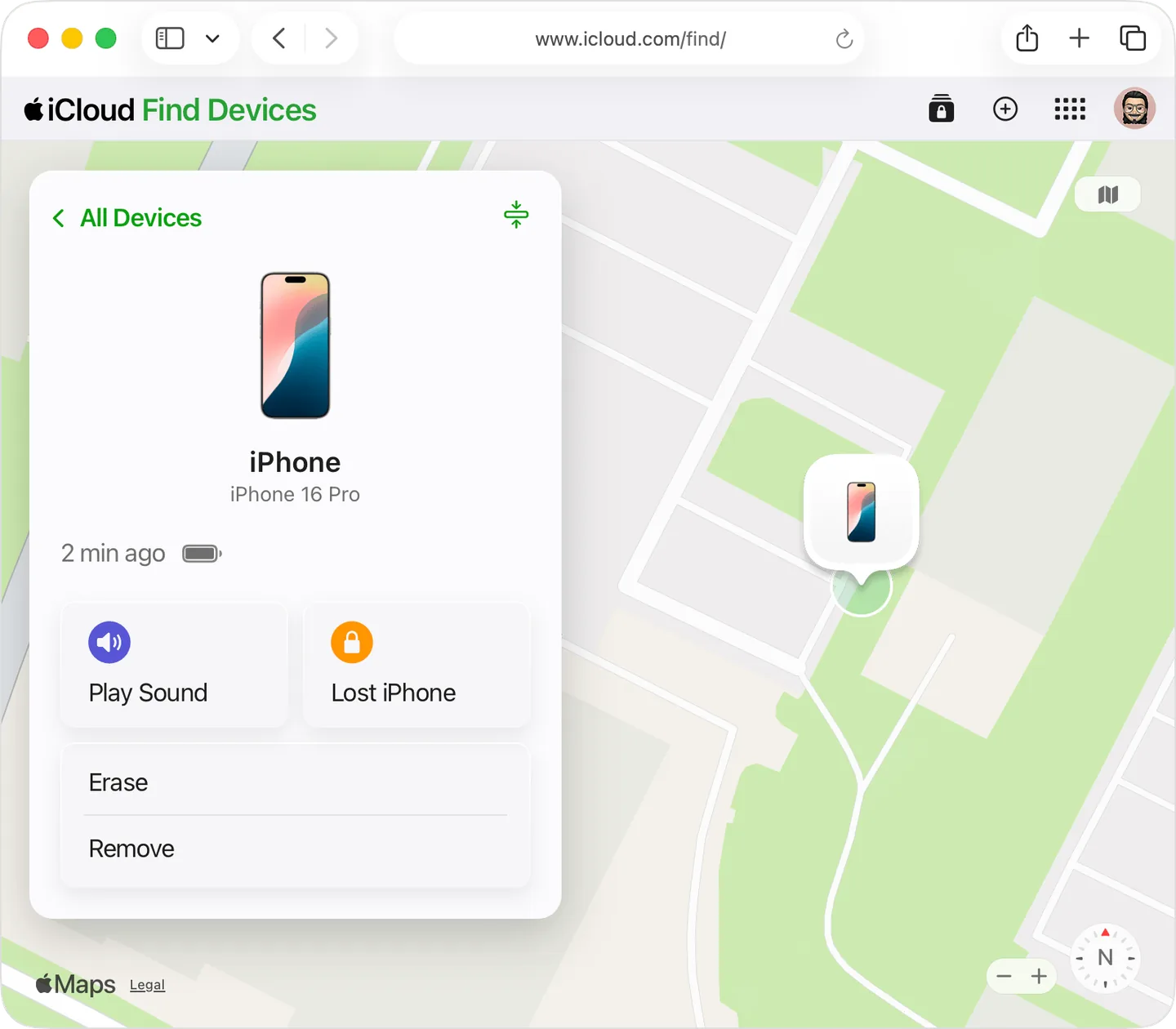
Under All Devices select your iPhone: the map shows where it is.
-
Choose what to do: play a sound (if you think it's at home or nearby), mark it as lost or erase it.
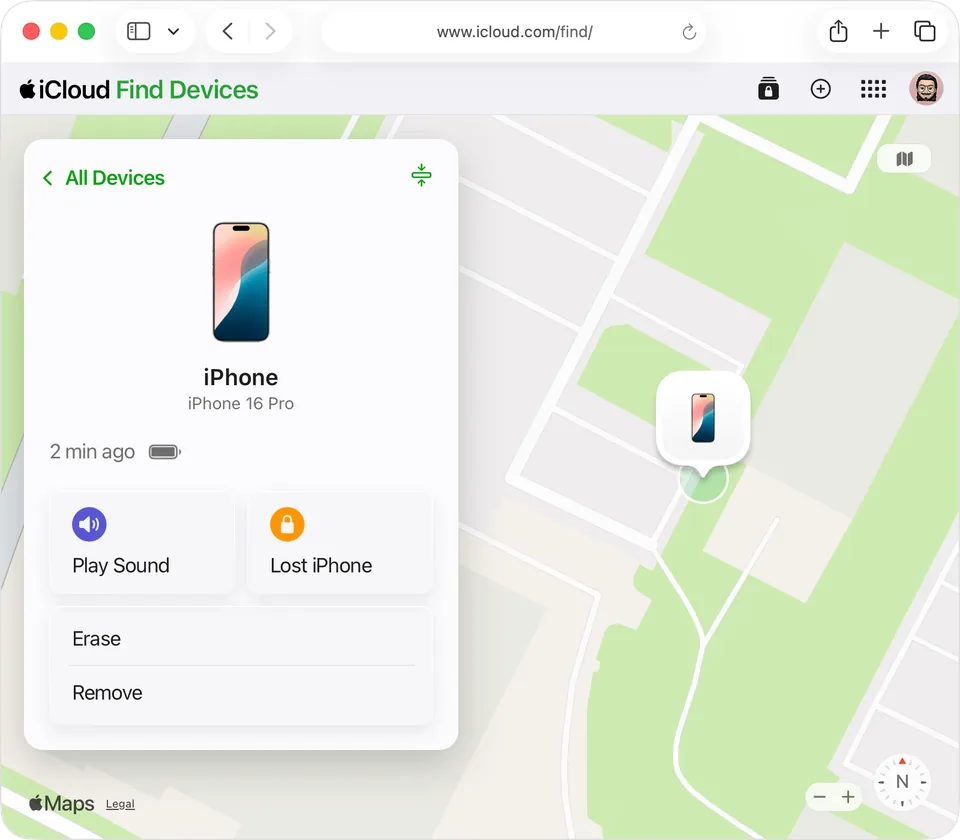
Step 4: Play Sound, Lost iPhone or Erase. Image: Apple Support
From the Find My app on another device
If you have an iPad or a Mac with the same Apple Account, or you're part of a Family Sharing group, you can use the Find My app:
-
Open Find My and go to the Devices tab.
-
Select the lost iPhone.
-
Tap the More button and scroll down to Lost [Device], then turn on Lost Mode.
-
If you like, follow the steps to show a phone number and a message on the screen, then tap Activate.
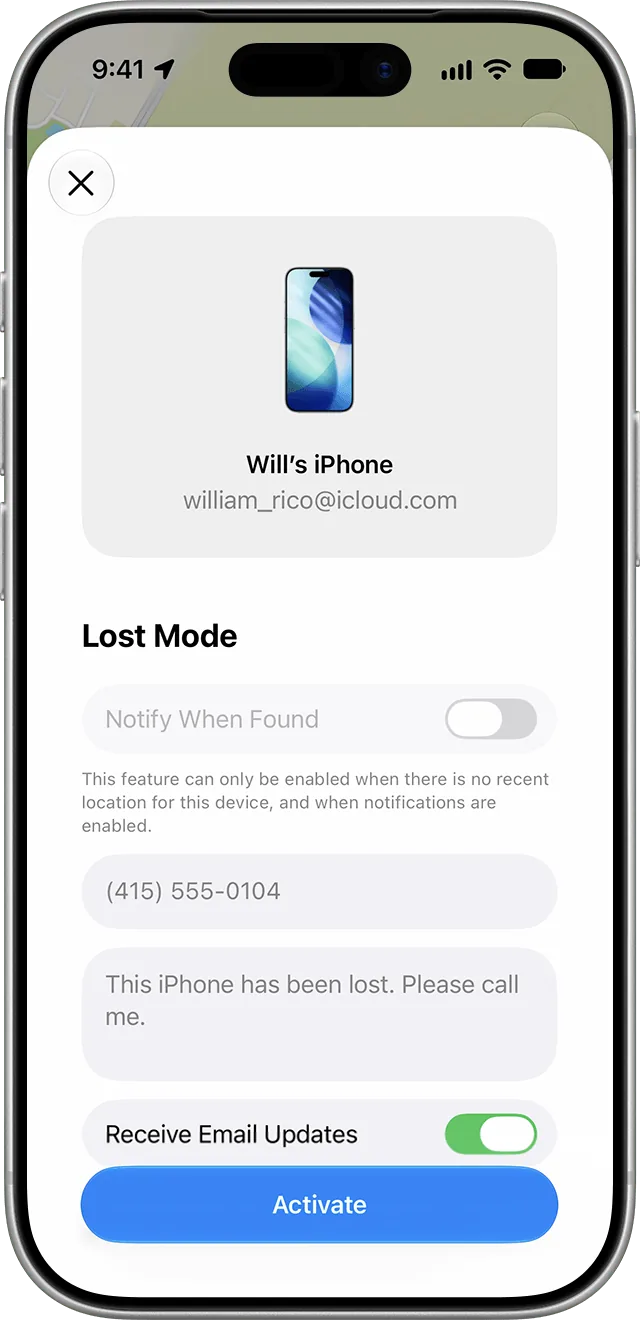
Step 4: number, message, then Activate. Image: Apple Support
What Lost Mode does
- It locks the iPhone with your passcode.
- It suspends Apple Pay cards and passes.
- It shows the message and number you chose on the screen, so whoever finds it can call you.
It works as soon as the iPhone is on and connected to the internet. If the phone was stolen, Apple advises not to include your contact information in the message: the thief could use it to trick you.
Erasing it remotely
If there's no way to get it back, you can erase all its content from icloud.com/find or the Find My app. Try everything else first: erasing can't be undone. If the phone is off, the erase starts when it comes back online.
Never remove the iPhone from Find My, not even after erasing it. As long as it stays there, Activation Lock asks anyone who tries to reactivate it for your Apple Account password, and the phone is useless to whoever took it. Removing it also removes this protection.
Finding an Android phone
The names below are the ones Google uses. On Samsung, Xiaomi and other brands some items may have different names or locations.
For remote locking or erasing to work, Google says the phone must: be turned on, be connected to mobile data or Wi-Fi, be signed in to a Google Account, have Find Hub turned on and be visible on Google Play.
- Open the Find Hub app on another Android phone or tablet. If you don't have another Android, open a browser at android.com/find.
- Sign in. If the phone is yours, tap Continue as [your name]; if you're helping a friend, tap Sign in as guest and let them enter their details.
- Select the lost phone: it will get a notification and the map will show where it is. If the current location isn't available, you may see its last known location.
- Choose what to do:
- Play sound: the phone rings at full volume for five minutes, even if it's on silent or vibrate.
- Mark as lost: locks the phone with your PIN, pattern or password. Tap Mark as lost > Next, add contact info and a message for whoever finds it, then tap Mark as lost again.
If you're near the phone (within 10 meters), Find nearby also appears, guiding you with a shape that fills in as you get closer.
Erasing it remotely
- In Find Hub select the phone.
- Select Settings.
- Tap Factory reset.
Google warns that this permanently deletes all data (but maybe not what's on the SD card) and that the phone will no longer appear in Find Hub. If you find it, you'll need the Google Account password to use it again.
The IMEI number
The IMEI number identifies the phone: with it your carrier can disable it. You'll find it in Find Hub: select the phone and tap Settings. Keep it with your police report.
If the phone can't be found
- Report the loss or theft to the police. Apple reminds you they might ask for the serial number.
- Call your carrier: have the SIM suspended, so nobody can use your number to receive the login codes for your accounts.
- Check your accounts. For your Apple Account: from another device go to Settings > [your name] > Sign-In & Security, or to account.apple.com. If you find changes you didn't make, change your password.
- Be wary of messages saying "your iPhone has been found, sign in here": Apple doesn't send them.
To do today, before it happens
On iPhone
-
Open Settings and tap your name, then Find My.
-
Tap Find My iPhone and turn on Find My iPhone.
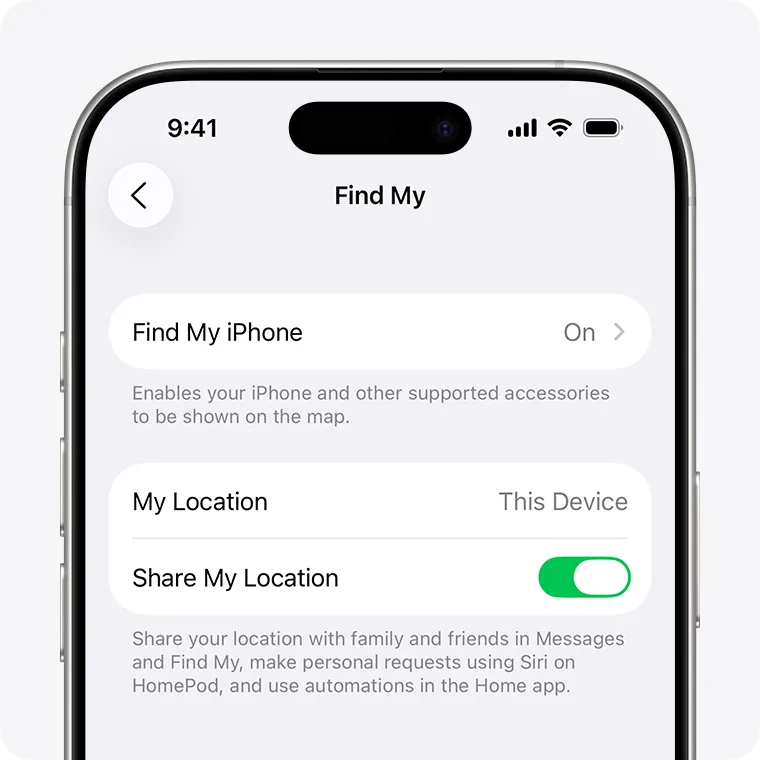
Step 2: Find My iPhone must say On. Image: Apple Support -
Also turn on Find My network, to see it even when it's offline, and Send Last Location, which sends its location to Apple when the battery is almost dead.
On Android
- Set a PIN, pattern or password for the screen: Google requires it to use the Find Hub network.
- Check that you have a Google Account on the phone: with it, Find Hub is turned on automatically.
On top of that, keep an up-to-date backup: if the phone doesn't come back, your photos and contacts are safe. For the iPhone see how to back up your iPhone to a PC or Mac.
If it still doesn't work
- The phone doesn't appear in the list: location probably wasn't on, or you used a different account. Try the other email addresses you use.
- The location is old or inaccurate: the phone is off or has no signal. Mark it as lost anyway: the lock kicks in as soon as it reconnects.
- You don't remember your account password: without it you can't do anything remotely. Recover it first.
- If you need help securing your accounts after a theft, or setting up a new phone, a technician can guide you step by step.
Frequently asked questions
Can I find the phone if it's off or the battery is dead?
It depends. On iPhone, with Find My network turned on, Apple says you can see it even when it's offline, and with Send Last Location you get its location when the battery is about to run out. On Android, Find Hub shows the last known location, if available.
If I erase the phone remotely, can whoever finds it use it?
No, as long as the protection stays on. On iPhone, Activation Lock asks for your Apple Account password; on Android, after the reset, the Google Account password is needed.
Apple wrote to tell me my iPhone was found: is it true?
Be suspicious. Apple says it will never contact you to say your device has been found. Messages like this are usually meant to steal your password.
Should I tell my carrier?
Yes, if the phone was stolen or is lost for good. Your carrier can suspend the SIM; with the IMEI number it can also disable the phone.