How to use WhatsApp on a PC and a Mac
There are two ways to use WhatsApp on a computer: in the browser with WhatsApp Web, or with the app for Windows and Mac. Either way you link the computer to your phone by scanning a QR code. How to do it, how to unlink it and what to do if it won't connect.
Procedure verified on against the official sources.
To use WhatsApp on a computer you have two options: WhatsApp Web, which opens in the browser at web.whatsapp.com with nothing to install, or the WhatsApp app for Windows or Mac. Either way the computer links to your phone: on the phone open WhatsApp, go to Linked devices > Link a device and scan the QR code that appears on the computer screen.
After that, you can read and write messages from the computer even with the phone off.
Before you start
- You need WhatsApp active on your phone. The computer is a "linked device": the account stays on the phone, which WhatsApp calls the "primary phone."
- Update WhatsApp on the phone and, if you use the app, on the computer too.
- The phone's camera has to work, because linking is done by scanning a code.
- Use a computer you trust. Anyone using that computer can read your chats as long as you stay linked. On a public or someone else's PC, log out when you're done.
- Use only official WhatsApp. WhatsApp warns that linking your account to unofficial apps or websites that imitate WhatsApp can put your account at risk and get it suspended. The only allowed ways on a computer are
web.whatsapp.comand the app for Windows or Mac.
Choose: WhatsApp Web or the app?
- WhatsApp Web works in any up-to-date browser (Chrome, Firefox, Microsoft Edge, Opera or Safari). You install nothing: handy on a computer that isn't yours. It doesn't work with old browsers like Internet Explorer.
- The app for Windows or Mac is a proper program. For Windows WhatsApp lists Windows 10 64-bit version 1903 or later. The app also lets you make voice and video calls, if the computer has a microphone, speakers and (for video) a webcam.
On Windows: installing the app
- Open the Microsoft Store (WhatsApp points to the
apps.microsoft.compage) or the official pagewww.whatsapp.com/download. - Download WhatsApp and follow the prompts to complete the installation.
- Open the app: a QR code will appear on the screen. Now link the phone (see below).
On Mac: installing the app
- Download it from the Mac App Store, or from the
www.whatsapp.com/downloadpage, choosing the Mac version. - Open the downloaded file and follow the installation prompts.
- Open the app and keep your phone handy.
With WhatsApp Web, from the browser
- On the computer open the browser and go to
web.whatsapp.com. - A QR code will appear. Follow the on-screen instructions to scan it with your phone, as explained below.
Linking the phone with the QR code
If you have an Android phone
- Open WhatsApp on the phone.
- Tap More options > Linked devices > Link a device.
- If asked, unlock with your phone's fingerprint, face or PIN.
- Point the phone at the computer screen and scan the QR code.
If you have an iPhone
-
Open WhatsApp on the iPhone.
-
Tap Settings (or your profile picture), then Linked devices > Link device.
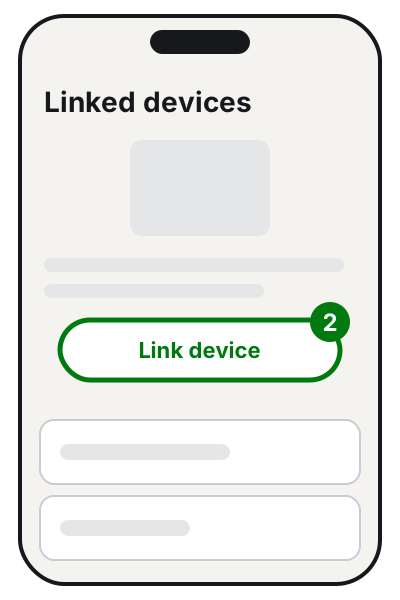
Step 2: Linked devices, then Link device. Illustration: SimpleBuild -
If asked, unlock with Face ID, Touch ID or your passcode.
-
Point the iPhone at the computer screen and scan the QR code.
If WhatsApp doesn't recognize the computer, it asks you to confirm: tap Link device only if you're the one linking it, otherwise Don't link.
Linking with your phone number (no QR code)
If the camera doesn't work, WhatsApp lets you link WhatsApp for Windows or WhatsApp Web with a code. On the Mac, according to WhatsApp, this feature isn't available yet.
- On the computer click Link with phone number (or Log in with phone number).
- Choose your country, type the number of your primary phone and click Next.
- An eight-character code appears on the computer screen.
- On the phone tap the Enter code notification, check that the computer's name and location are right and tap Confirm.
- Type the eight-character code on the phone.
Alternatively, on Android: More options > Linked devices > Link a device > Link with phone number instead, then enter the code.
Unlinking the computer
Always do this if you used a computer that isn't yours.
From the phone (works remotely too)
- Open WhatsApp and go to Linked devices (on Android from More options, on iPhone from Settings).
- Tap the computer you want to unlink.
- Tap Log out.
From the computer
In WhatsApp Settings on the computer choose Log out, then confirm with Log out.
Check the Linked devices list now and then: if you see a computer you don't recognize, unlink it right away. WhatsApp also recommends keeping notifications on on the phone, so you're alerted when someone links a new device. After 30 days of inactivity, linked devices are disconnected automatically.
What you can't do from the computer
WhatsApp lists some features not supported on linked devices, including live location and broadcast lists. Also, if you don't open WhatsApp on the phone for more than 14 days, the computer gets disconnected and you have to link it again.
If it still doesn't work
- The QR code won't scan. Check that the phone's camera works, for example by taking a test photo. If it doesn't, link with your phone number instead (on Windows or WhatsApp Web).
- "Computer not connected" appears. WhatsApp explains that usually the computer's internet connection is missing. If the connection is fine: refresh the page, log out and back in, restart the computer (turn it off, wait 30 seconds and turn it back on). The guide on Wi-Fi connected but no internet helps you tell whether the network is the problem.
- It works at home but not at the office or university. WhatsApp points out that some workplace Wi-Fi networks block WhatsApp: try another network or your phone's hotspot, or ask whoever manages the network.
- WhatsApp Web is acting strangely. WhatsApp recommends clearing the browser's cache and cookies: the guide on how to clear your browser history and cache explains how. Afterwards you'll have to link the phone again.
- You don't see all your old chats on the computer. WhatsApp reports a known issue where some linked devices don't show up to a year of chat history: the chats are still on the phone. Keep the app updated.
- The PC is too old for the app. Use WhatsApp Web in an up-to-date browser.
- If you need to set up WhatsApp on several workstations in an office, or you're unsure who can read the chats, it's worth having a technician help you set things up once and for all.
Frequently asked questions
Does the phone have to stay on while I use WhatsApp on the PC?
No. Linked devices work even with the phone off or offline. But you have to open WhatsApp on the phone at least once every 14 days, otherwise the computer gets disconnected.
On how many computers can I use WhatsApp at the same time?
WhatsApp lets you link up to four devices to your primary phone at the same time.
Can I use WhatsApp on a PC without having a phone?
No. WhatsApp explains that the computer can't be the primary device: the account is registered on the phone, and the other devices are linked from there.
I used WhatsApp on a PC that isn't mine: how do I log out?
On your phone open **Linked devices**, tap that computer and then **Log out**. It works even if the PC is far away.
Sources
- About WhatsApp Web (WhatsApp Help Center)
- How to link a device, Android (WhatsApp Help Center)
- How to link a device, iPhone (WhatsApp Help Center)
- How to link a device with phone number (WhatsApp Help Center)
- About linked devices (WhatsApp Help Center)
- How to download WhatsApp Desktop, Windows (WhatsApp Help Center)
- How to download WhatsApp Desktop, Mac (WhatsApp Help Center)
- How to unlink a device (WhatsApp Help Center)
- How to fix connection issues, WhatsApp Web (WhatsApp Help Center)