How to print double-sided from Windows and Mac
If your printer can flip the sheet on its own, one checkbox in the print window is enough. If it can't, you print the odd pages first, flip the stack, then print the even ones: on Windows with Word, on Mac from any app.
Procedure verified on against the official sources.
If your printer can flip the sheet on its own (it's called automatic double-sided or duplex printing), just choose it in the print window: on Windows from Word with Print on Both Sides, on a Mac with the Two-Sided menu. If the printer can't do it, you print the odd pages first, flip the stack of sheets, then print the even pages.
Before you start
- Check what your printer can do. Microsoft suggests looking at the printer's manual or asking the manufacturer. There's also a quicker way: if the option to print on both sides appears in the print window, the printer supports it.
- If you have several printers, one may do double-sided and the others not: check which one is selected.
- Do a test with two or three pages, especially with the manual method. Every printer wants the sheets turned its own way: better to get it wrong on two sheets than on fifty.
- Put enough paper in the tray before you start, so printing doesn't stop halfway.
- If the printer won't print at all, start with the guide on what to do if the printer is offline.
Long edge or short edge?
When you choose double-sided, the program often asks which edge to "bind" the sheets on:
- Long edge: the sheet turns like the page of a book. It's the right one for letters, contracts and almost all portrait documents.
- Short edge: the sheet flips from the top, like a hanging calendar. The back is rotated by half a turn.
If you don't know which to choose, choose long edge.
On Windows with Word
These instructions apply to Word for Microsoft 365, 2024, 2021, 2019 and 2016.
If the printer does double-sided on its own
-
In Word, open the document and select the File tab.
-
Select Print.
-
Under Settings, open the Print One Sided item.
-
If there's a Print on Both Sides option, select it: your printer flips the sheet on its own.
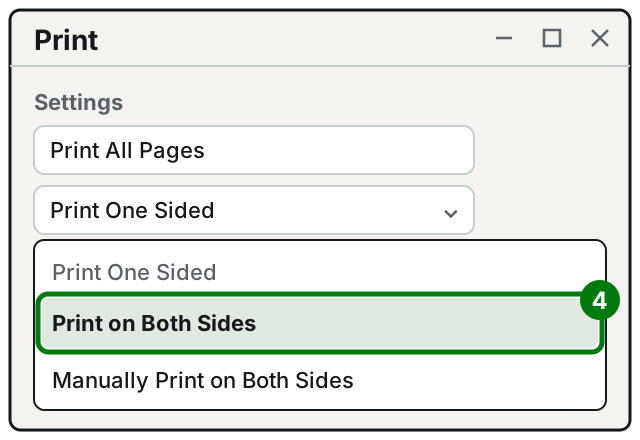
Step 4: Print on Both Sides. Illustration: SimpleBuild -
Press Print.
If the printer doesn't do double-sided: manual method
Word can guide you: it prints all the pages for one side, then asks you to turn the sheets over.
- Select the File tab, then Print.
- Under Settings, open Print One Sided and choose Manually Print on Both Sides.
- Press Print.
- When Word asks you, flip the stack of sheets you've already printed and put it back in the printer.
Microsoft recommends doing a test first to understand which way the sheets go back into your printer.
Or: odd pages first, then even
- Select the File tab, then Print.
- Under Settings, open Print All Pages and, at the bottom of the list, choose Only Print Odd Pages.
- Press Print.
- When the odd pages are out, flip the stack and put it back in the printer.
- Go back to Settings, open Print All Pages and choose Only Print Even Pages.
- Press Print.
If the pages come out in the wrong order, Word has an option for that: go to File > Options > Advanced and, in the Print section, use Print on front of the sheet for duplex printing or Print on back of the sheet for duplex printing.
On Windows from other programs
Not all programs have Word's items, but the principle is the same: open the print window and look for the double-sided option.
- In the Chrome browser, and in many other programs, the print window opens with Ctrl + P. There you choose the printer and change the print settings: look among them for an option to print on both sides.
- In programs with a Properties or Preferences button next to the printer's name, the option may be inside that window, which comes from the printer's software (the driver). In the Xerox manual, for example, the item is called 2-Sided Printing and offers long edge or short edge. With other brands the name changes: if you can't find it, check your printer's manual.
If the option isn't anywhere, the simplest thing is to open the document in Word, or save it as a PDF and print it from there. To go from one format to the other, there's the guide on how to convert a PDF to Word, and Word to PDF.
On Mac
On a Mac the options are the same in almost every app, because the print window is the system's own. The instructions apply to macOS 27 according to the Mac User Guide.
If the printer does double-sided on its own
-
Open the document and choose File > Print (or press Command + P).
-
In the Two-Sided pop-up menu, choose On. If instead you want the sheets bound at the top, like a calendar, choose On (Short Edge).
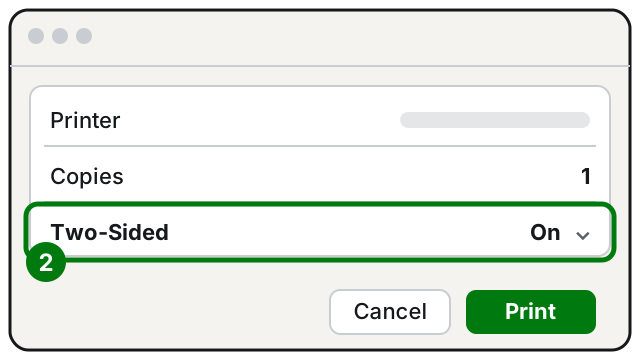
Step 2: Two-Sided set to On. Illustration: SimpleBuild -
Click Print.
If the Two-Sided menu isn't there, the selected printer probably can't flip the sheet on its own: use the manual method below.
If the printer doesn't do double-sided: odd and even pages
- Open the document and choose File > Print.
- Click Paper Handling.
- In Pages to Print, choose the odd pages and click Print.
- When printing is finished, flip the stack of sheets and put it back in the printer.
- Open File > Print and Paper Handling again, choose the even pages and print.
If the backs come out in reverse order, Paper Handling also has Page Order, which you can set to Normal or Reverse.
A booklet folded in half
In the same window, under Layout, if the printer can print double-sided, a Print as booklet option may appear: it puts the pages in order so you can fold the sheets in half.
How to find the right way to turn the sheets
With the manual method, the most common mistake is putting the sheets back the wrong way: the back comes out upside down or on top of the page already printed. To avoid it:
- Take a blank sheet and make a small pencil mark at the top, on the side facing up.
- Put it in the tray and print a test page.
- See where the print landed compared with the mark: that tells you which side your printer prints on and where the "top" is.
- Write it on a sticky note next to the printer: you'll need it next time.
If it still doesn't work
- The double-sided option doesn't appear: check that the right printer is selected in the print window. If it is, it probably doesn't have automatic double-sided printing: use the manual method.
- The back comes out upside down: you chose short edge instead of long edge, or (with the manual method) you flipped the stack the wrong way. Redo the test with the pencil-marked sheet.
- Even pages come out in reverse order: in Word use the option in File > Options > Advanced > Print; on a Mac change Page Order in Paper Handling.
- Sheets jam on the second pass: freshly printed paper can be slightly curled. Straighten the stack, remove any folded sheets and put it back in the tray.
- You want to print from your phone: see how to print from your phone.
- The printer isn't connected to the computer yet: follow the guide on how to connect a Wi-Fi printer.
- If your office often prints long double-sided documents and someone gets the direction wrong every time, a technician can set the printer preferences on every computer once and for all.
Frequently asked questions
What's the difference between long edge and short edge?
With long edge, the sheet turns like the pages of a book: it's the right choice for almost all portrait documents. Short edge is for sheets you flip from the top, like a calendar, and the back is rotated.
Why don't I see the option to print on both sides?
Usually the printer doesn't have automatic double-sided printing, or it isn't the one selected in the print window. In that case, use the manual method with odd and even pages.
Does double-sided printing save paper with inkjet printers too?
Yes, you use half the sheets. The ink is the same, because the pages to print stay the same.