How to transfer all your data from one Android phone to another
The most complete way is to copy your data when you first turn on the new phone, with a cable or over Wi-Fi. What transfers and what doesn't, how to prepare with a Google backup and what to do if you've already set up the phone.
Procedure verified on against the official sources.
The most complete way to move from one Android to another is to copy your data when you first turn on the new phone. When it asks, tap Copy and connect the two phones with a cable (the method Google recommends) or over Wi-Fi. Apps, photos, videos, music, contacts, messages, call history and most settings come across. If you've already set up the phone, there are still a couple of options.
Before you start
- Both phones charged. The transfer can take anywhere from a few minutes to a few hours.
- The PIN, pattern or password of the old phone: you need it to unlock and confirm.
- Your Google Account password. Google recommends signing in during the transfer, to copy more.
- An internet connection, ideally Wi-Fi for both.
- A SIM tray pin, to move the SIM from one phone to the other. If you use an eSIM, you'll download your carrier's eSIM on the new phone.
- Enough space on the new phone. If there isn't, you'll be able to choose what to copy. To clean up the old one, see how to free up space on Android.
- WhatsApp backup turned on on the old phone, if you use WhatsApp: see how to back up WhatsApp.
Samsung, Xiaomi and other brands. This guide follows Google's steps and names. Setup screens can vary from brand to brand, and Google itself points out that Samsung phones have their own transfer tool, Smart Switch. For the Pixel 8 and 8 Pro, Google refers you to the Pixel Help Center instead.
Make a Google backup first
It's not required, but it protects you if the transfer gets interrupted or the old phone breaks right now. On the old phone:
- Open Settings.
- Tap Google (on some phones Google services) > All services.
- Under "Backup and restore" tap Backup, then Back up now.
The backup includes apps and their data, call history, contacts, settings and SMS. Photos go to Google Photos if you've turned on backup there. Google gives you 15 GB free per account; if it's full, see how to free up space on Google.
What transfers and what doesn't
According to Google, setup copies:
- apps and certain app data;
- photos, videos and music;
- contacts stored on the phone or SIM;
- text messages and the media attached to them;
- call history and wallpaper;
- most settings (depending on the phone and the Android version).
It does not copy:
- downloads, such as PDFs;
- photos, videos and music in hidden folders;
- apps that don't come from the Google Play Store;
- data from apps that don't use Android backup;
- non-Google accounts and their data, including contacts and calendars synced with those services;
- ringtones and certain settings.
Move what doesn't transfer, like downloaded PDFs, by hand before you start: for example to a computer or a cloud service.
The transfer, step by step
On the new phone
-
Turn it on and tap Start. If you like, you can change the language and vision settings right away.
-
Connect to a Wi-Fi network or insert the SIM (or download the eSIM). Google recommends doing both; what matters is having internet.
-
When it offers to copy apps and data, tap Copy.
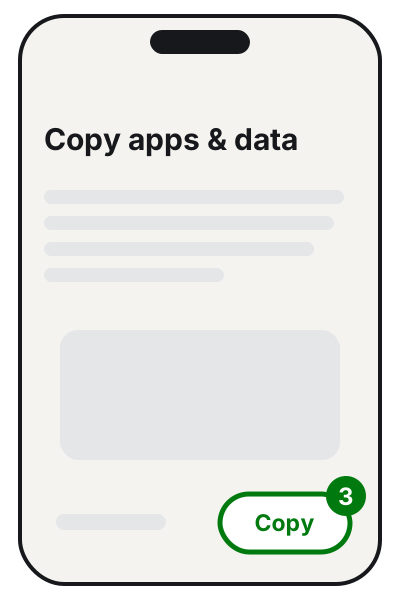
Step 3: tap Copy. Illustration: SimpleBuild
With a cable (recommended)
- Follow the instructions on screen and connect the two phones with a cable. If the cable doesn't fit one of them, you may need an adapter; otherwise use Wi-Fi.
- On the old phone tap Copy.
- Sign in to your Google Account when asked.
- Choose what to copy and tap Copy.
While copying, the new phone shows "Copying your data…"; when it's finished, the old one shows "Copying's done."
Without a cable, over Wi-Fi
On the new phone:
- When it asks you to find a cable, tap No cable.
- When it shows "Transfer wirelessly," tap Next.
- When asked, enter the PIN of the old phone.
On the old phone:
- Open the Google app and search for set up my device.
- Tap Next, and Next again when "Get started" appears.
- Check that the shapes and numbers match on both screens.
- Tap Next > Copy, sign in to your Google Account and choose the apps and data to copy.
- Wait for the message saying the copy is finished.
If the new phone shows a QR code during pairing and you can't scan it, Google offers an alternative: on the old phone tap the setup notification and Set up, then Try another way, and check that the codes on the two screens match.
If you no longer have the old phone
You can start from the Google backup. When the new phone shows "Copy apps & data," tap Next; when it asks for the cable, tap Cable doesn't fit or No adapter?. Choose the right backup, enter the old phone's PIN if asked, select the data and tap Restore.
After the transfer
- Open WhatsApp on the new phone and sign in: your chats come from the backup.
- Check contacts, photos and messages before you erase the old phone.
- Before you give away, sell or trade in the old phone, factory reset it, as Google recommends, so you don't leave your data to someone else.
If it still doesn't work
- You skipped the copy during setup. Google suggests opening Settings on the new phone and tapping Finish setting up at the top, or the Finish setting up your device notification. On phones with Android 17 and later there's also an option to copy data in Settings > Accounts & backup. If you can't find any of these, the last resort is to factory reset the new phone and start over: only do it if there's nothing important on it yet.
- The cable isn't recognized or you see "Try another cable": unplug it at both ends and plug it back in; try another cable; if you're using an adapter, try it on the other phone; check that the old phone's port isn't dirty. Then try Wi-Fi.
- The transfer has been stuck for more than 15 minutes: tap Stop copying and check what has already been copied.
- A phone ran out of battery halfway: charge it; usually the transfer picks up where it left off.
- Not enough space on the new phone: copy fewer types of data, for example leave out photos if they're already in Google Photos, where you'll find them anyway.
- If you'd rather have someone do the switch with you, checking that nothing is missing before the old phone is erased, a technician can help.
Frequently asked questions
Do WhatsApp chats transfer on their own?
Google explains that chats are restored from the cloud when you open WhatsApp on the new phone, but only if you turned on WhatsApp backups on the old one. Check this before you start.
Can I transfer data more than once?
Google says the transfer can only be done once. If you add more data after setup, it has to come from that same old phone.
How long does it take?
From a few minutes to a few hours, according to Google, depending on how much data you have. Keep both phones charged and don't use them in the meantime.
The new phone has an older version of Android: is that a problem?
It can be. Google warns that a backup made with a newer version of Android can't be restored on an older one, and the transfer may end up incomplete.